
GM, COT❣️ Yuzunoko here.
When you shoot cosplay at an event, how much do you actually touch your phone's camera settings?
Apple's iPhone User Guide and Google's Pixel Camera Help both walk through Portrait mode for blurring the background, adjusting focus and exposure, HDR, and zoom.
In this article I've stuck to the feature names and steps written on the two companies' official pages. What you can use depends on your model, so wherever the official pages say "supported models," I've kept it that way.
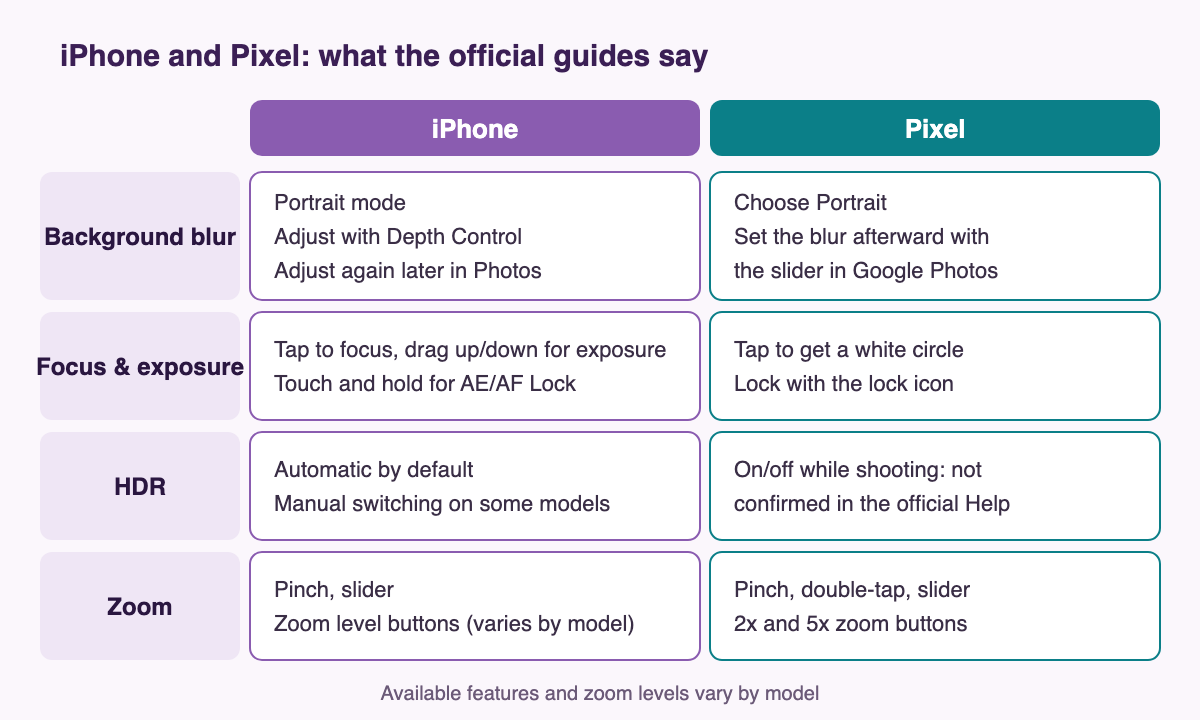
Here are the four features side by side for both phones.
Blur the background with Portrait mode
The iPhone User Guide explains that when you apply a depth-of-field effect in Portrait mode, you can keep your subject in focus while blurring the foreground and background. The basic steps are to open Camera, swipe left, and choose Portrait mode.
To adjust how blurry the background gets, swipe up from Portrait mode at the bottom of the screen, tap Depth, and drag the Depth Control slider left or right. Even after you've taken the shot, you can apparently turn the effect on or off and adjust the blur in the Photos app.
Being able to fix it afterward is a real help when everything's rushed on the day.
You can pick a lighting effect too. The User Guide lists six: Natural Light, Studio Light, Contour Light, Stage Light, Stage Light Mono, and High-Key Light Mono.
On Pixel, the Pixel Camera Help steps are to open the Camera app, choose Portrait from the photo mode carousel, and tap the shutter. For the strength of the blur, it says to open the photo in Google Photos after shooting, go to Tools in the editor, choose the blur icon, and adjust it with the slider.
On Pixel Tablet, Portrait mode apparently only works with the front camera.
Set focus and exposure yourself
The iPhone sets focus and exposure automatically before you take a photo. To set them by hand, tap the spot on the screen you want in focus, then drag the icon next to the autofocus area up or down to adjust exposure.
When you're taking lots of shots of the same person, locking comes in handy. Touch and hold the autofocus area until AE/AF Lock appears, and focus and exposure stay fixed for the shots that follow. Tapping the screen releases the lock.
If you only want to lock exposure, swipe up from the camera modes at the bottom of the screen, tap Exposure, and adjust it with the slider. Exposure stays locked until the next time you open Camera, and if you turn on Exposure Adjustment under Settings > Camera > Preserve Settings, it apparently won't reset even when you reopen the app.
On Pixel, when you tap your subject, a white circle appears and moves around the screen to follow them. To lock focus and exposure on a moving subject, the Help says to tap the lock icon.
When backlight makes a face come out dark, or a white costume looks like it's about to blow out, nudging the exposure just a little changes how it all looks (when the embroidery or lace on a costume blows out to plain white, it's honestly such a waste).
HDR is automatic by default, and some models let you switch it
According to the iPhone User Guide, HDR (high dynamic range) is meant for scenes with a big difference between light and dark. It takes a quick burst of photos at different exposures and combines the details of the bright parts and the shadows into one image. By default, HDR is used automatically when it's most effective.
Only some models let you control it by hand. The User Guide says that on iPhone 11 models, iPhone SE (2nd generation), and iPhone 12, if you turn off Smart HDR in Settings > Camera, you can tap HDR on the camera screen to turn it on or off.
In the Pixel Camera Help, I couldn't find steps for turning HDR on or off while shooting. The Pixel 11 series has a feature called Camera styles, and it explains that one of the styles you can choose, the default style, affects how HDR photos are processed.
For zoom, switch between the zoom buttons and pinching
On iPhone, you pinch the screen to zoom, or touch and hold the zoom controls at the bottom of the frame and drag the slider left or right. On supported models, you can tap zoom levels like 0.5x, 1x, 2.5x, 3x, 4x, 5x, and 8x to switch quickly (which levels show up depends on the model).
The Pixel Camera Help lists three ways to zoom: pinching, double-tapping the screen, and the slider at the bottom of the screen. The page on taking high-quality photos says that when you're shooting something far away, tap the 2x or 5x zoom button above the shutter for a quick adjustment, and pinch or swipe the zoom buttons to bring up the slider when you want to fine-tune.
There was also a tip that light matters when you shoot using zoom and stabilization.
When you're shooting cosplay on stage from the audience, for example, how far you can zoom depends on your phone.
It's worth opening the camera once before the event to see what your phone offers (you really don't want to be fumbling for the zoom level right when they hit that cool pose❣️).
About this article
I put this article together from Apple's iPhone User Guide and Google's Pixel Camera Help.
The features and steps you see change with your model and with your OS and app versions. To find out what your own phone can do, check the official user guide for your model.
Even when you're shooting on a phone, getting the person's consent before you take and post photos is what events' official rules ask for.
Quotes from Japanese sources are our own translations.
Translated from the Japanese original.
See you next time on COT❣️